
My Billing: view and pay your monthly fees
My Billing is the screen where you see what you owe the gym and what you’ve already paid. Open it with Billing in the bottom bar. If you have a pending monthly fee, the icon shows an alert dot.
Transcript
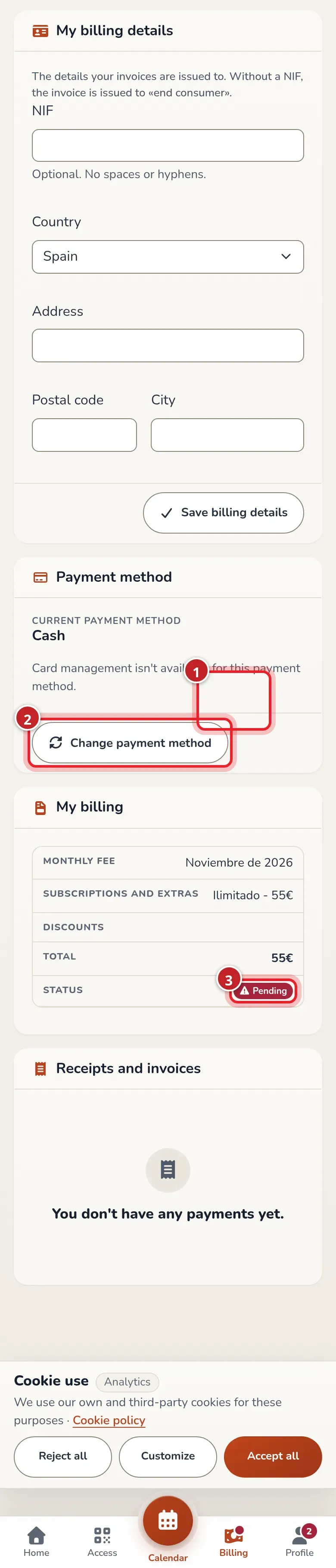
In the bottom bar, tap Billing. The alert dot tells you that you have a pending payment.
At the top you see your current payment method, for example Cash.
Below is the list of your monthly fees: the month, what your plan includes, the total, and whether it’s paid or pending.
If your gym allows it, Change payment method lets you choose another one. Online payments are turned on by your gym.
What you see on the screen
Section titled “What you see on the screen”A monthly fee is one period of your plan. The plan is what the gym charges you, for example “3 classes per week”. Each monthly fee is a card with this information:
- Monthly fee: the month of the fee.
- Subscriptions and extras: your plan and, if you have any, other items added on, each with its price.
- Discounts: anything taken off, if there is something.
- Total: what you pay for that monthly fee.
- Status: Paid or Pending.
If you don’t have any monthly fees yet, the screen says "You don't have any billing yet".
Your plan and what you owe, on Home
Section titled “Your plan and what you owe, on Home”The Home screen shows the “My monthly fee” card: the name of your plan (for example, “9 + 4 Open”), the total for the period, the day it starts and the day it ends, and whether it’s active or waiting to be paid.
If you owe something, an alert with the pending amount appears above the cards. If your payment method lets you pay from your phone, the alert has a “Pay now” button that opens the same payment window as My Billing. If not, tap the alert and it takes you to My Billing. If you owe several months, “Pay now” settles the oldest one first.
Pay a pending monthly fee
Section titled “Pay a pending monthly fee”-
Open Billing (marker 1).
-
Tap the Pending label on the monthly fee (marker 3).
-
The Payment information window opens with the pending amount and your current payment method. What it offers depends on the method:
- Cash. It asks you to pay at the gym. Gym staff record the payment when they receive it.
- POS (card at the gym). It asks you to pay by card at the gym’s card terminal. Staff record this one too.
- Checkout. Tap Pay now. The app takes you to a secure payment page outside RoninBox, where you choose a card or another available option.
- Recurring. The payment is charged automatically to your saved card. If the gym also offers online payment, you can pay right away with the button.
If the payment date hasn’t arrived yet, the window says "The payment date hasn't arrived yet". If you tap a monthly fee that’s already paid, you see the recorded payments: date, description and amount.
At some gyms, before paying you can choose the day your monthly fee starts (Monthly fee start date). The window tells you which dates you can choose between.
Change my payment method
Section titled “Change my payment method”The Payment method card shows your Current payment method.
-
Tap Change payment method (marker 2 in the first image).
-
Choose one of the options. Only the ones your gym offers appear: Cash, POS (card at the gym), Recurring and Checkout. Under each one, the app explains how it works.
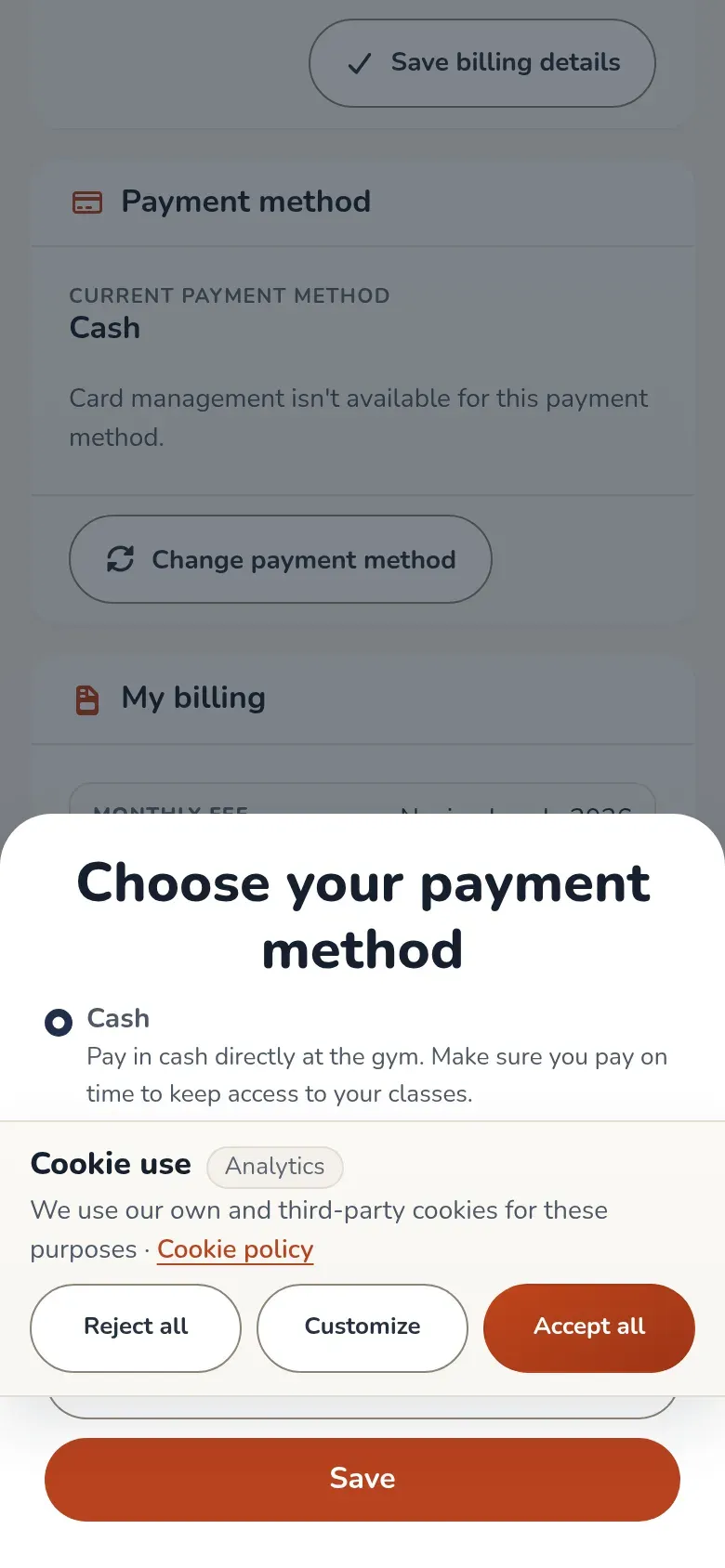
The window for choosing the method. This gym offers three options. -
Tap Save. The screen reloads and you’ll see the new method.
If your gym stops offering the method you had, the screen lets you know and the window opens automatically so you can choose another one. Until then, you can’t pay online.
With recurring payments you see your saved cards and the Edit cards button, which opens a secure page from another company where you add, change or remove cards. If you don’t have any, the app warns you that automatic payments can’t be made without a saved card.
Start my next period early
Section titled “Start my next period early”If your gym charges by periods that start on the day you signed up (not by calendar month), the Start the next period card tells you when your next period starts. At a gym that charges by calendar month the card doesn’t appear: the period is the month and it can’t be moved up. Once you’ve used all the classes in your current period, the Start my next period now button appears: when you tap it and confirm, your current period closes early and the new one starts. The app tells you the date the current one will close.
You can’t do this if:
- you still have classes left in this period;
- your plan is unlimited;
- you already have a class booked in the next period.
The button only exists at gyms where the period counts from your start date. At other gyms, the card is for information only. The new period starts unpaid.
My plan: sign up, upgrade, downgrade and cancel
Section titled “My plan: sign up, upgrade, downgrade and cancel”At gyms that charge by subscription, the My plan card lets you manage your plan without going to the front desk. Before you confirm anything, each window shows you the exact amount.
- Choose plan, if you don’t have a plan yet. You choose the plan and how to pay for this month: the full month or, if the month has already started, just what’s left (from the second week on: three quarters, half or a quarter of the classes and the price). Then you save your card on a secure page and, starting on the 1st, it’s charged automatically every month.
- Turn on automatic payment, if you already have a plan and pay it manually. You save your card; nothing is charged today and the first charge is on the 1st.
- Upgrade plan. You choose a bigger plan and whether it’s permanent or just this month. Either way, you pay the difference now and get the new plan’s classes right away. Permanent: starting on the 1st you pay the new plan. Just this month: on the 1st you go back to your usual plan. If you pay at the gym, the classes are added right away and you pay the difference there.
- Downgrade plan. This month doesn’t change and nothing is refunded: the smaller plan starts in your next period.
- Cancel membership. You can keep coming until the end of the paid period, and after that you aren’t charged anything else. Until that day you can tap Stay at the gym.
You change your cards with Edit cards. If a payment fails, the card says so and the gym may limit your bookings until it’s paid.
Switch plans
Section titled “Switch plans”If you can switch plans, you see a Change plan card with your current plan. Tap the button, choose the new one from the list and confirm. The change applies to this monthly fee and the following ones.
The card doesn’t appear, or the change is rejected, if your monthly fee is already paid, is from a past month, has an unlimited plan or a class discount, or if the new plan doesn’t cover the activities you’ve already attended or has fewer classes than you’ve used. In those cases, ask at the gym.
Buy single classes
Section titled “Buy single classes”If the gym allows it, you also see a card here for buying a class pass. It’s explained in Buy single classes.
If you don’t see these options
Section titled “If you don’t see these options”The payment method, next period, plan and single classes cards only appear when your gym has online payments turned on. Without them, you see the list of monthly fees and their status, and you pay at the gym.
Common issues
Section titled “Common issues”- I tap Pending and there’s no pay button. Your method is Cash or card terminal, or your gym doesn’t offer online payment. See Change my payment method.
- I paid and it still says Pending. Some payments take a while to confirm. Wait a few minutes before trying again.
- It won’t let me book and I have a dot on Billing. Pending monthly fees can stop you from booking. See Book a class.