
How to mark holidays and days without classes
Holidays keep your box’s schedule from offering classes on days you won’t be holding them. A holiday applies to the whole box and to every schedule rule, and you define it with a date range.
Before you start, it’s a good idea to read How to set up the class schedule: holidays only affect classes the schedule hasn’t saved yet.
How to add a holiday for the whole box
Section titled “How to add a holiday for the whole box”-
Open Classes, go to Schedule and tap Holidays.
-
Check the Holidays table: it lists the holidays with the columns Holiday from and Holiday until.
-
In the Add holiday section, enter Exception start and Exception end.
-
Tap Save.
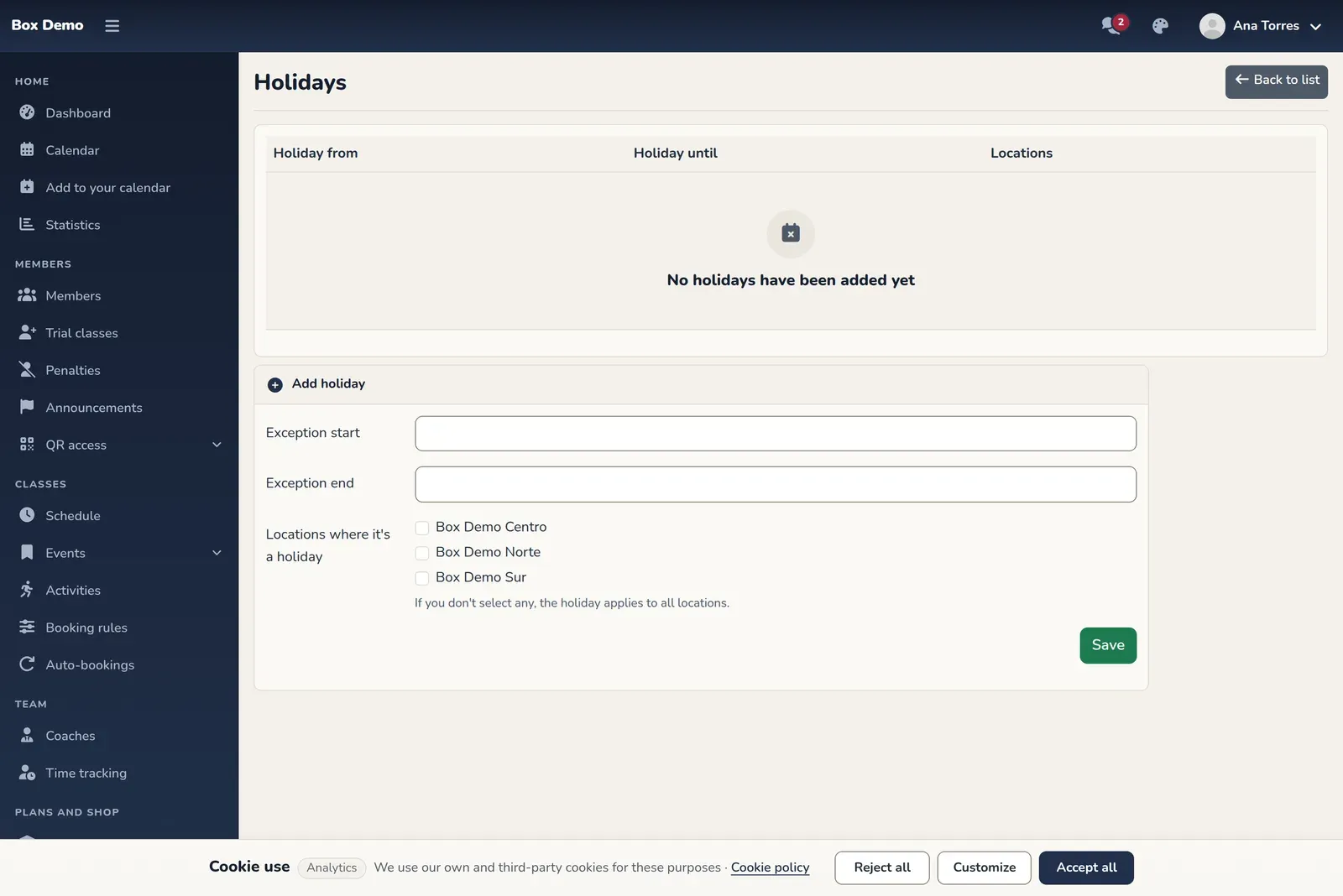
The holidays screen: the table at the top and the form below.
The end day is not part of the holiday: RoninBox removes classes from the start day through the day before the end. If the box is closed December 24 to 26, set the end to the 27th.
To delete a holiday, tap the trash icon in its row.
What they don’t do
Section titled “What they don’t do”- They don’t delete classes that are already saved. To remove a specific class, use How to create a one-off class (the event list has a trash icon) or the class window in the calendar.
- They don’t notify members.
Common mistakes
Section titled “Common mistakes”- The holiday doesn’t appear in the list. The list only shows holidays starting from a month ago onward.
- I still see a class on that day. It was already saved before you created the holiday. Delete it manually.
- The last day of the holiday has classes. The end day isn’t included; push the end date out by one day.