
How to create a product in the gym shop
To create a product in RoninBox you fill in two steps: first its details and photos, then its variants with the price, stock and tax. A product is what you sell (a T-shirt); a variant is each specific version (the black T-shirt in M). A product without sizes or colors has a single variant.
Where to find products
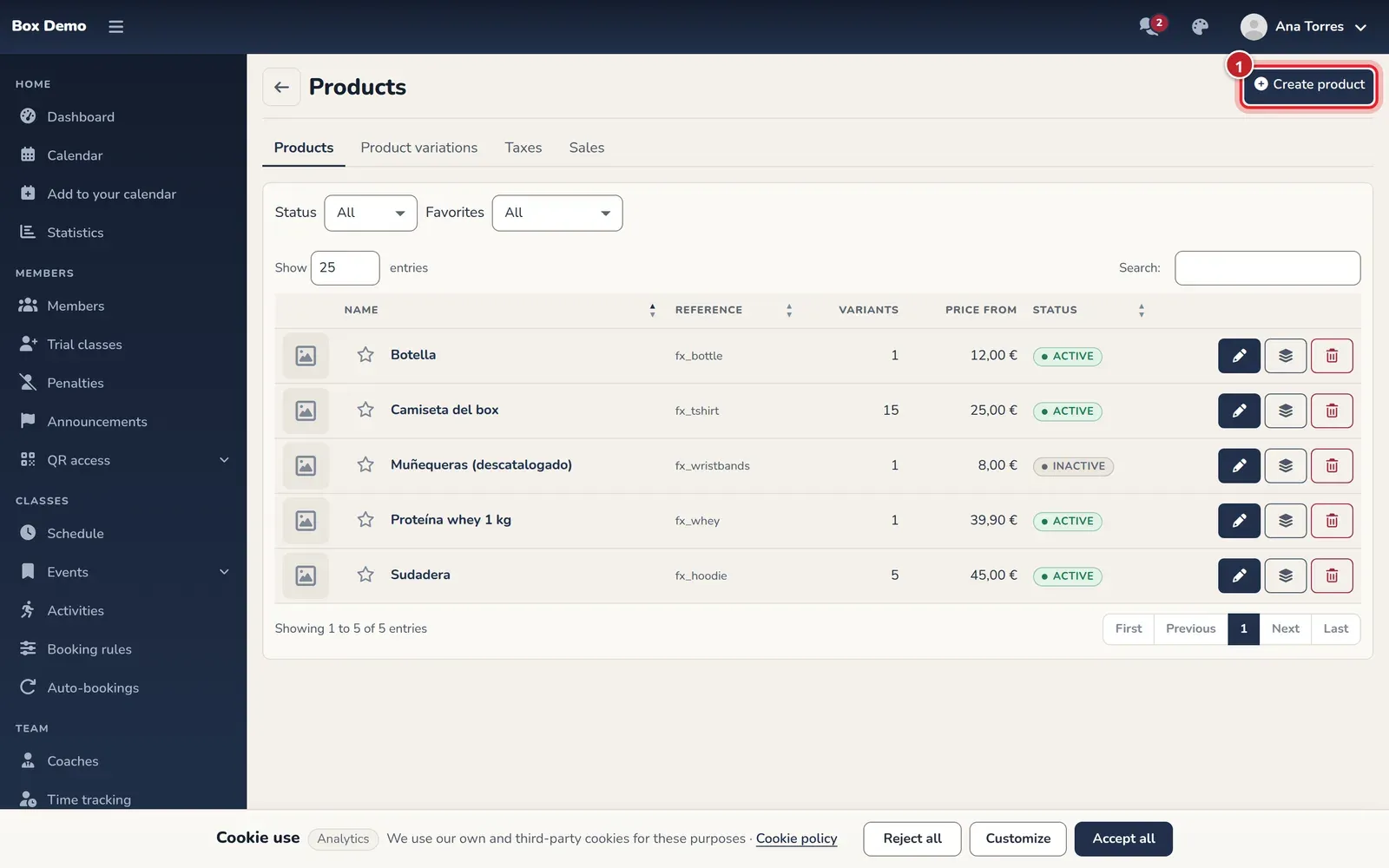
Section titled “Where to find products”Open Shop ▸ Products. The list shows the photo, name, reference, how many variants it has, the Price from and whether it’s active. At the top you can filter by Status and by Favorites. Each row has three buttons: edit, variants and prices, and delete. The star marks or removes the favorite.
Step 1: details and photos
Section titled “Step 1: details and photos”-
Click Create product.
-
Enter the Name and, if you like, the Description.
-
Leave For sale checked if you want to sell it right away. Uncheck it to take it off sale without deleting it.
-
Check Favorite if you want it to appear in quick sale.
-
Under Product options, check the options it’s sold in (size, color…). Each combination will be a variant. If the product is sold without options, don’t check any. Options are created in Product variations.
-
Under Photos, click Add photo and choose an image (JPG, PNG, GIF or WebP up to 10 MB). You can move photos up and down to reorder them and link a photo to certain variants, for example the red photo to the red variants.
-
Click Save and continue.
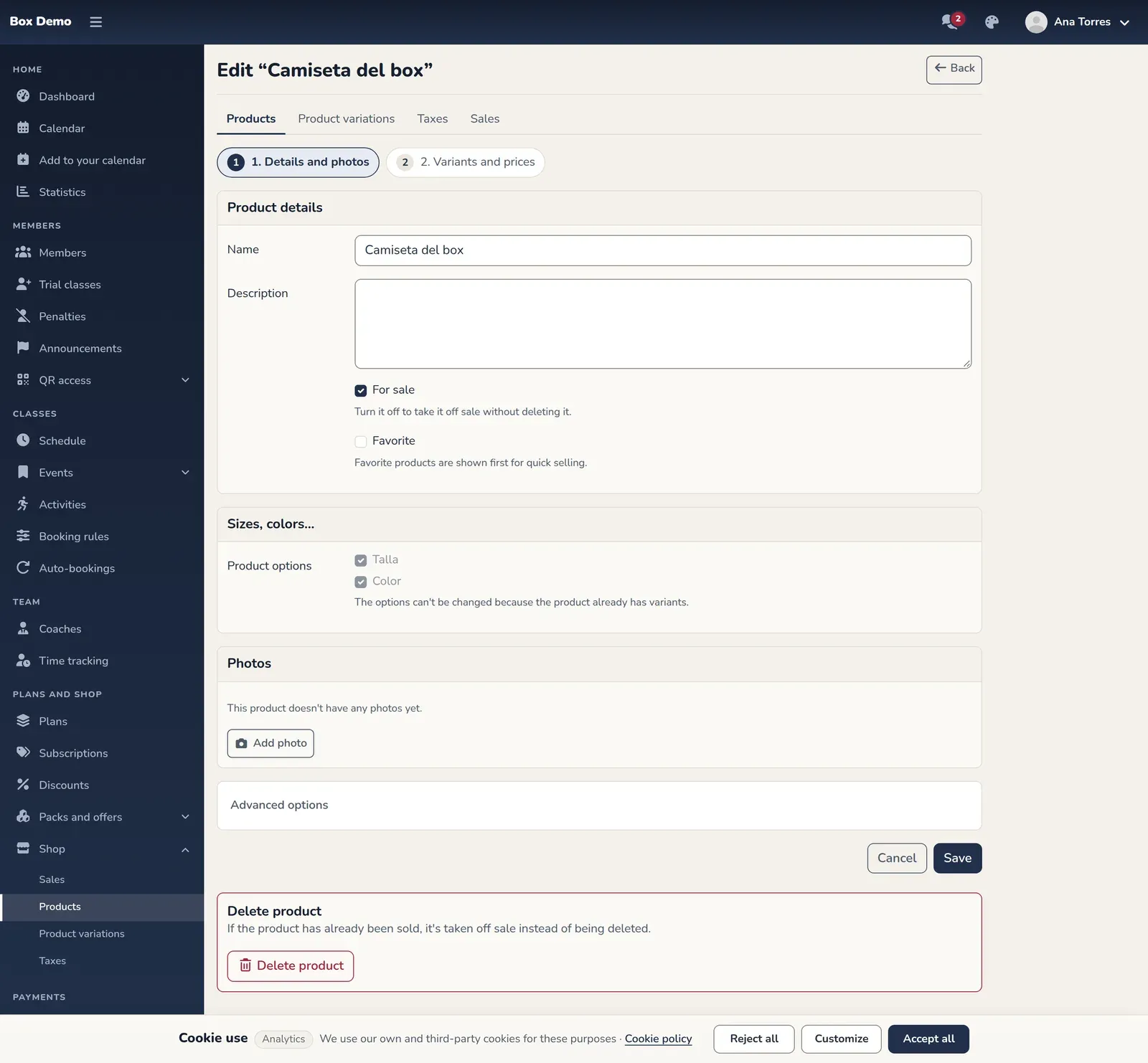
Step 1 when editing a demo product. This product has no photos yet.
Under Advanced options you can change the internal reference and the link identifier. If you leave them empty they’re generated from the name, so you usually don’t need to touch them.
Step 2: variants and prices
Section titled “Step 2: variants and prices”When you save a new product, RoninBox takes you to the 2. Variants and prices step. You can also get there from the variants button in the list.
-
If the product has options and no variants yet, click Generate variants: one variant is created for each combination of values (for example 5 sizes by 3 colors, 15 variants). Later the button is called Generate the missing combinations and only adds the missing ones.
-
For each variant, check:
- For sale: whether it can be sold.
- Price (tax incl.): what the member pays, taxes included.
- Track stock and Stock: if you turn it on, stock goes down with each paid sale.
- Tax: the tax category. If you don’t choose one, it stays as "No tax". They’re created in Taxes.
-
To give them all the same price, enter it in Price for all and click Apply to all.
-
Click Save prices and stock.
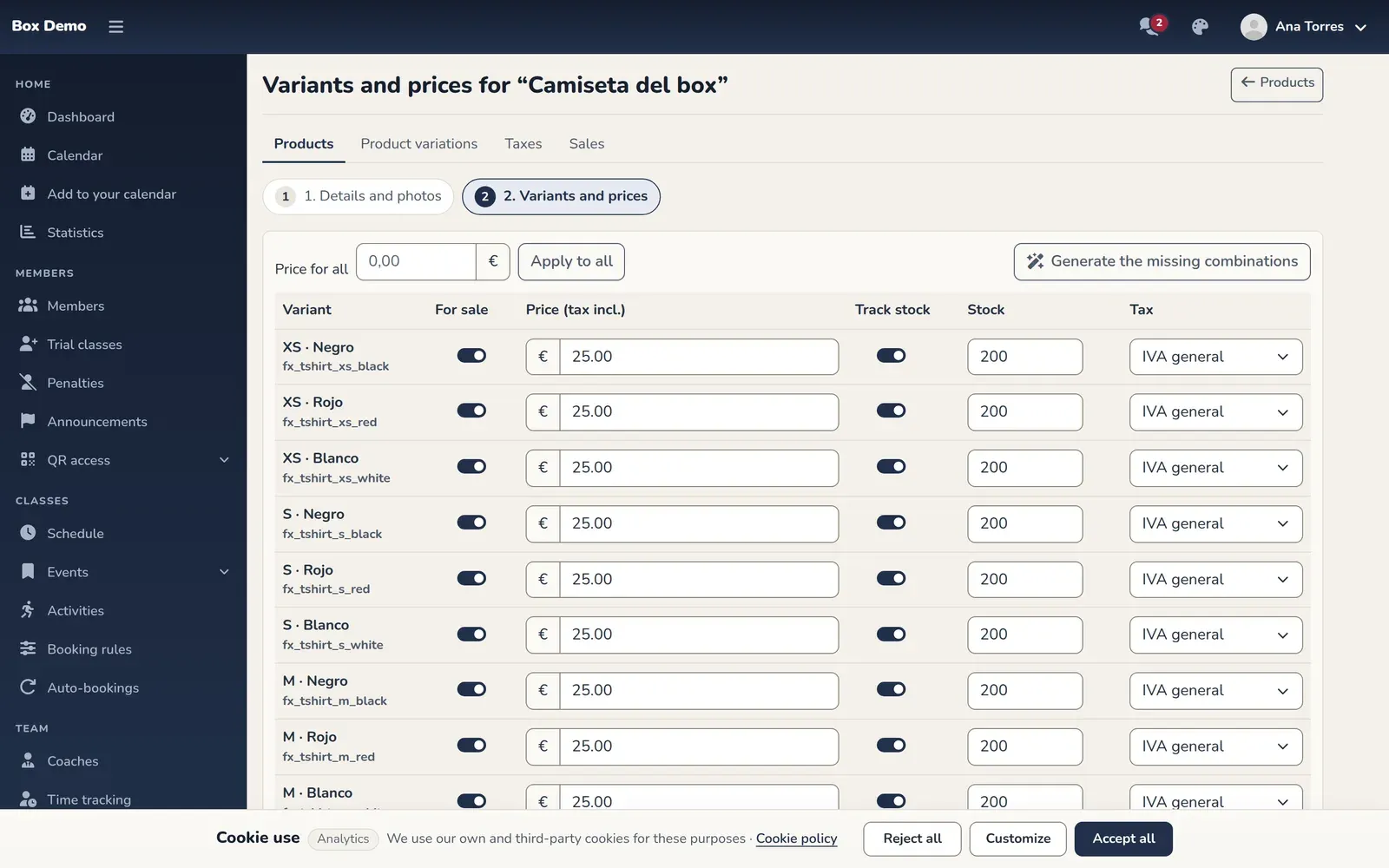
Step 2: one row per variant, with its price, stock and tax.
Edit, take off sale or delete
Section titled “Edit, take off sale or delete”- To change the name, photos or favorite, use the pencil in the list. Options can’t be changed once the product has variants.
- To take it off sale without losing anything, uncheck For sale.
- Deleting a product also deletes its variants and photos. If the product already appears in a sale, it isn’t deleted: it’s taken off sale.
Common errors
Section titled “Common errors”- The product doesn’t show up when selling. Check that the product and the variant are for sale and that the variant has a price.
- “No combinations to generate”. The product has no options, or the options have no values. Add them in Product variations.
- The favorite doesn’t show up in the class. Quick sale only shows favorite products that are for sale and have at least one sellable variant.