
How to create a WOD and publish it to members
To create a WOD in RoninBox, enter its name, choose the type and the activity, and paste the workout into the editor. A WOD is the workout of the day. Members read it in the app and log their result below it.
The three lists
Section titled “The three lists”WODs live in WODs, split into three lists by type:
- E.D.D: WODs of type WOD, the ones assigned to a day and an activity.
- The Girls: those of type The Girls.
- Heroes: those of type Hero.
Each WOD is a card with its text, plus its date, publication and activity if it has them. Members reach the same three lists from their profile.
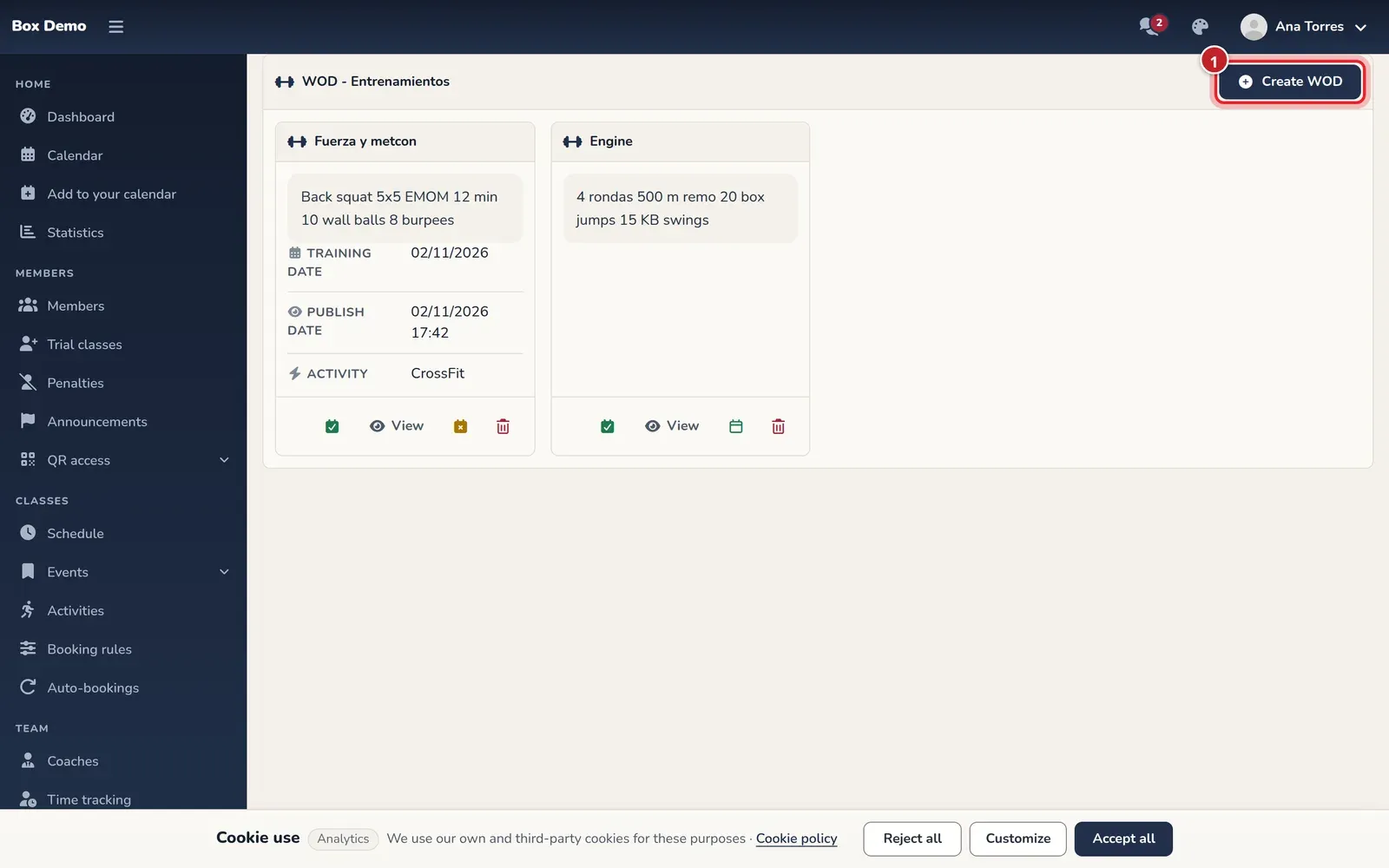
How to create a WOD
Section titled “How to create a WOD”-
Open one of the lists and tap Create WOD (marker 1 in the first image).
-
Enter the Name (marker 1).
-
Choose the Workout type (marker 2): WOD, The Girls or Hero.
-
Choose the Activity (marker 3). It’s required.
-
If you already know them, fill in the Workout day and the Publish date. You can leave them empty and assign them later.
-
Type the workout in the WOD box (marker 4), add photos under Images, or both. A WOD can be just the photo of the whiteboard.
-
Tap Save workout (marker 5). RoninBox opens the WOD’s page.
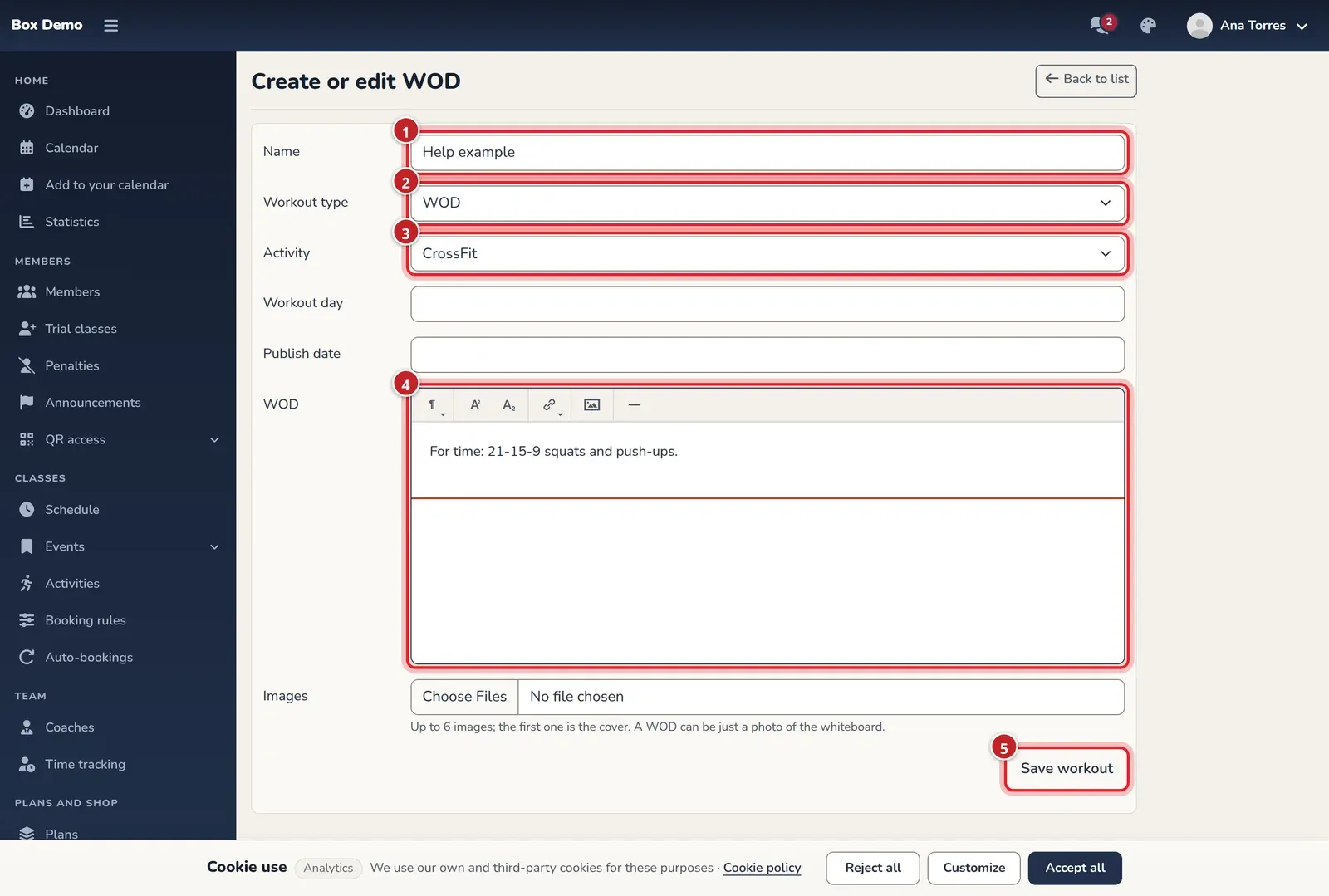
The WOD form.
To change it later, open its page with View and tap the pencil.
WOD images
Section titled “WOD images”Under Images you can upload up to 6 photos (JPG, PNG, WEBP or HEIC, 10 MB each). The first one is the cover: it’s the one your members see on their home screen and in the class. When you edit the WOD, its existing photos show a Remove checkbox so you can remove them.
Where your members see it
Section titled “Where your members see it”A WOD assigned to a day and an activity appears, once published:
- On the member’s Home screen, in the Today's workout card. If they have a booking that day, the one for their activity shows first.
- When they open a class of that activity on that day, in the Workout section. The gym staff sees it there even before it’s published, marked Unpublished.
- On its public page, with the photos.
Publishing a WOD
Section titled “Publishing a WOD”Only WODs of type WOD (the E.D.D list) need to be published. Until their publication date has passed, members don’t see them in the list and can’t open them: for them, they don’t exist. The gym staff does see them. The Girls and Hero are always visible.
There are two ways to publish it:
- Publish now. Tap Publish now and confirm. The WOD is visible to all members right away.
- Assign a date and activity. Tap Add dates. A window opens with Activity, Workout date and Publish date, all three required. Tap Assign. The WOD is assigned to that day and activity, and is published at the time you set.
To remove the dates, tap Remove dates and confirm. The day and activity are deleted and the WOD is no longer published.
How members log their result
Section titled “How members log their result”On a WOD’s page, the member taps Add result and fills in:
- Result type: Meters, Miles, Reps, KCalories or Time.
- Result, or the minutes and seconds if the type is Time.
- Comment, optional.
- The Post result checkbox.
Then they tap Save result.
The page lists the results under the WOD. A member only sees results marked as public and, for other members, only the username. The gym staff sees all results with full names and can publish or hide, edit and delete them. Each member can do the same with their own published results.
Common issues
Section titled “Common issues”- Members can’t see the WOD. If it’s of type WOD, it still needs to be published: tap Publish now or assign dates.
- I can’t assign dates to a The Girls or a Hero. Assigning and publishing only exist for WODs of type WOD.
- I removed the dates and the WOD disappeared. That’s expected: removing dates also unpublishes it.
Each member’s personal records, like their one-rep max squat, aren’t WOD results: they’re stored in RMs and movements.