
Billing rules and money permissions
Billing rules decide how members pay, plus pauses, cancellations, credit balance, the type of monthly fee and the deadlines to pay. Money permissions decide which operations each staff role can do and with what limits.
Only administrators can change these screens. They are in Gym settings ▸ Billing rules and Money permissions.
Set up the billing rules
Section titled “Set up the billing rules”-
Open Billing rules.
-
Review the sections in the table below. Each field’s help text shows its default value.
-
Change what you need and tap Save at the bottom of the page.
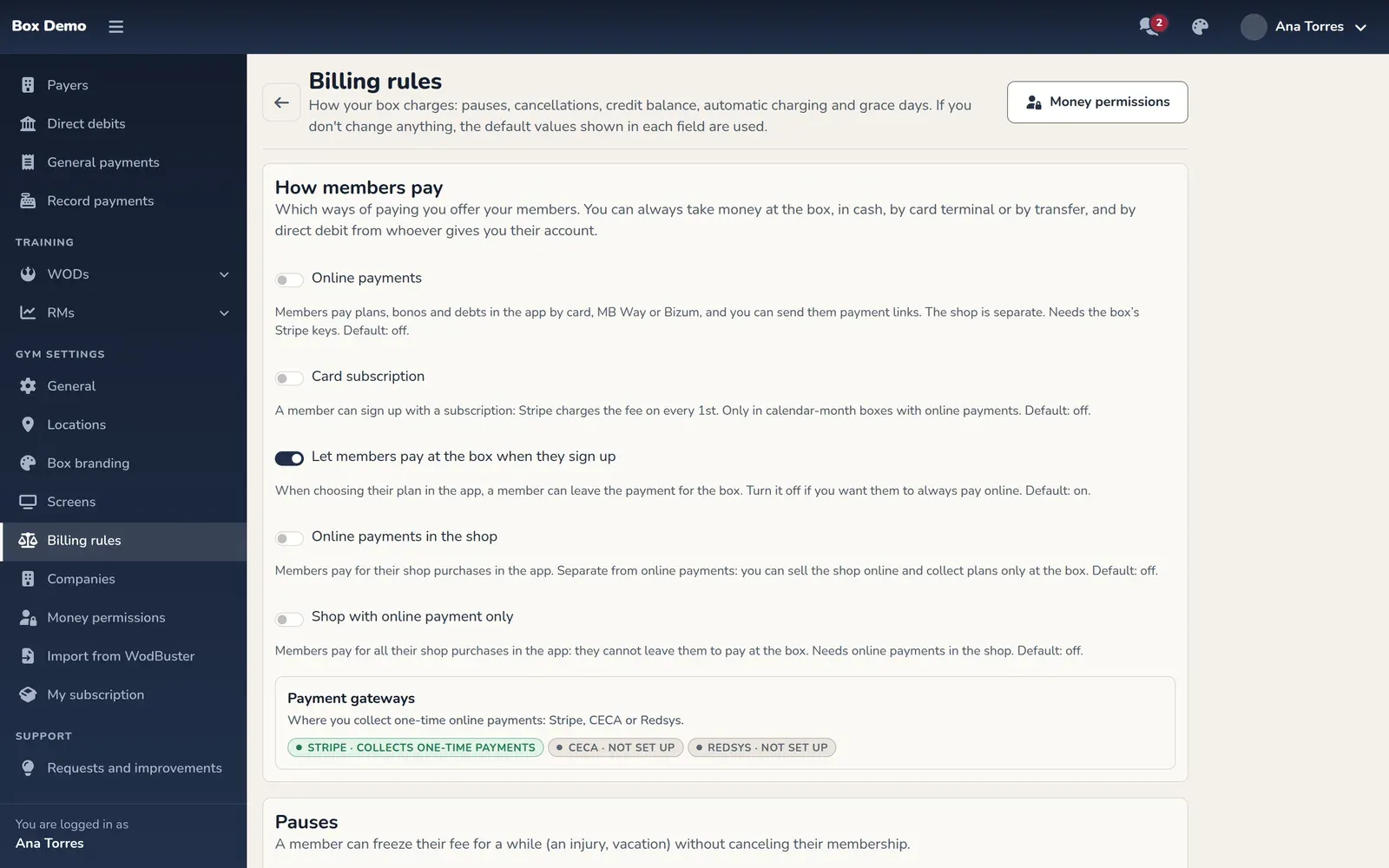
| Section | What you decide and default values |
|---|---|
| How members pay | Which payment methods you offer. Charging at the gym (cash, card terminal, bank transfer) and direct debit for anyone who gives you their account always work. Also: Online payments (off; requires RoninBox to enable online payments), Card subscription (off; Stripe charges the fee on the 1st of each month, calendar month only), Let members pay at the box when they sign up (on) and two shop switches. The gym doesn’t charge saved cards on its own: only the member’s own subscription is charged automatically. |
| Pauses | Pauses allowed; maximum of 60 days per year; minimum of 7 days. If you turn them off, no one can pause their fee. |
| Cancellations and returns | For paid days not used: Nothing is refunded by default, a prorated refund or credit balance. By default there’s no sign-up fee waiver for people who come back soon. |
| Credit balance and proration | Credit balance automatically pays the oldest debt. A partial month is charged for the remaining days, by default. |
| Automatic charging | Monthly fee type: Calendar month (from the 1st to the last day of the month) by default, or 4 weeks: 28-day passes from each member's sign-up day. Applies to new contracts; each contract keeps the one it started with. Charging fees in advance: 0 days by default, from 0 to 27. |
| Several months paid at once | The % discount for paying 2, 3, 4, 5, 6 or 12 months at once, the same for all plans. Empty or 0 = no discount. It adds to the member’s discounts and shows in “Charge” and at sign-up. See Charge several months. |
| Grace days | 5 days to pay before bookings and door access are blocked; accepts 0 to 28. You can extend the grace period for a specific month. |
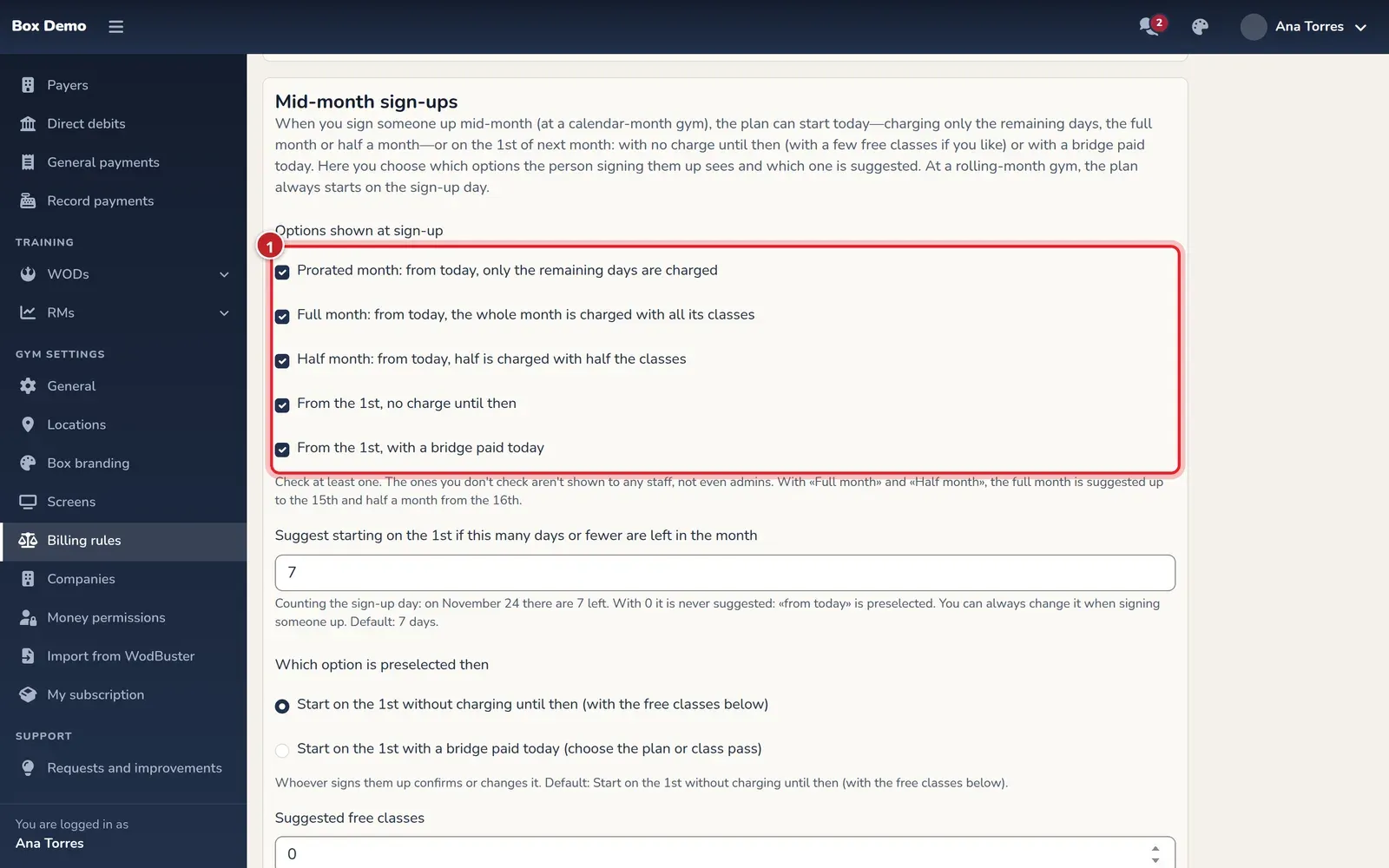
| Mid-month sign-ups | With calendar months, when 7 days or fewer are left, starting on the next 1st is suggested, with 0 free classes. You can change the threshold, the suggestion and the classes; with a threshold of 0 it’s never suggested. |
| Advance classes | Off by default. Only for plans with a number of classes per month, on calendar months: a member who has used up the month’s classes books with one from next month by tapping Use a class from next month. Maximum of 2 classes per month, starting 7 days before month end, and next month must be paid (paid, covered by a block, paid elsewhere or with automatic charge). If that month doesn’t exist yet, it’s created with its fee, which isn’t debt until the 1st. If they cancel in time, the class goes back to its month. |
For cancellations you can choose Nothing is refunded, The prorated amount is refunded or It's kept as credit for when they come back.
In Mid-month sign-ups you choose which options staff see when signing up a member (prorated month, full month, half month, from the 1st without charging, or with a bridge; at least one) and whether sign-up lets them enter the first month’s amount and charge the sign-up fee and fees. Staff can adjust the sign-up suggestion within those options. See Mid-month sign-up, Pauses and cancellations and Grace period for a month. The pauses video shows an exception to the rules.
If there’s an error when saving, it’s flagged at the top and next to the field. Amounts accept a comma or a period and up to two decimals.
Review money permissions
Section titled “Review money permissions”The table has one row per action and one column per role: Coach, Manager, Admin and Super admin. You only see your own role and the ones below it: an administrator sees the first three columns. On phones, actions are shown as cards.
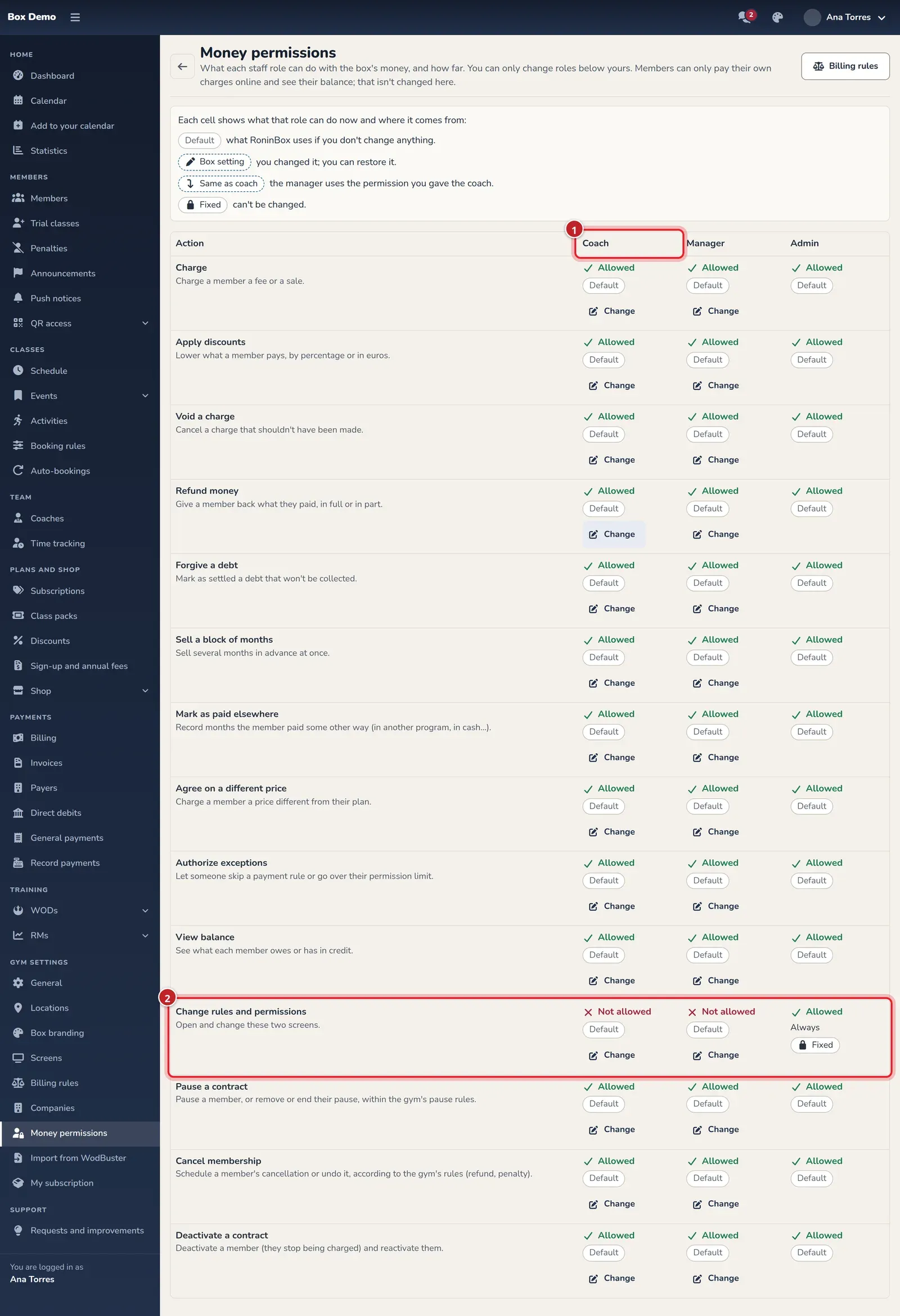
By default, coach and manager can do all money operations with no limits, except Change rules and permissions. Administrators and super administrators can do all of them.
The 14 actions are:
- Charge.
- Apply discounts.
- Void a charge.
- Refund money.
- Forgive a debt.
- Sell a block of months.
- Mark as paid elsewhere.
- Agree on a different price.
- Authorize exceptions.
- View balance.
- Change rules and permissions.
- Pause a contract.
- Cancel membership.
- Deactivate a contract.
Each cell shows where it comes from: Default if it uses the initial value; Box setting if you changed it; Same as coach if the manager uses the coach’s permission; or Fixed if it’s fixed.
Set a limit or remove a permission
Section titled “Set a limit or remove a permission”-
In Money permissions, find the column of the lower role you want to limit, for example the coach’s (marker 1).
-
Tap Change on an editable cell, for example discounts. Marker 2 points to the action for changing rules and permissions, reserved for administrators.
-
Allow or turn off the action. Depending on the operation, you can limit the percentage, the amount per operation, the months or the payment methods. An empty limit means no limit.
-
Save. If you later want to undo your change, use Restore default on that cell.
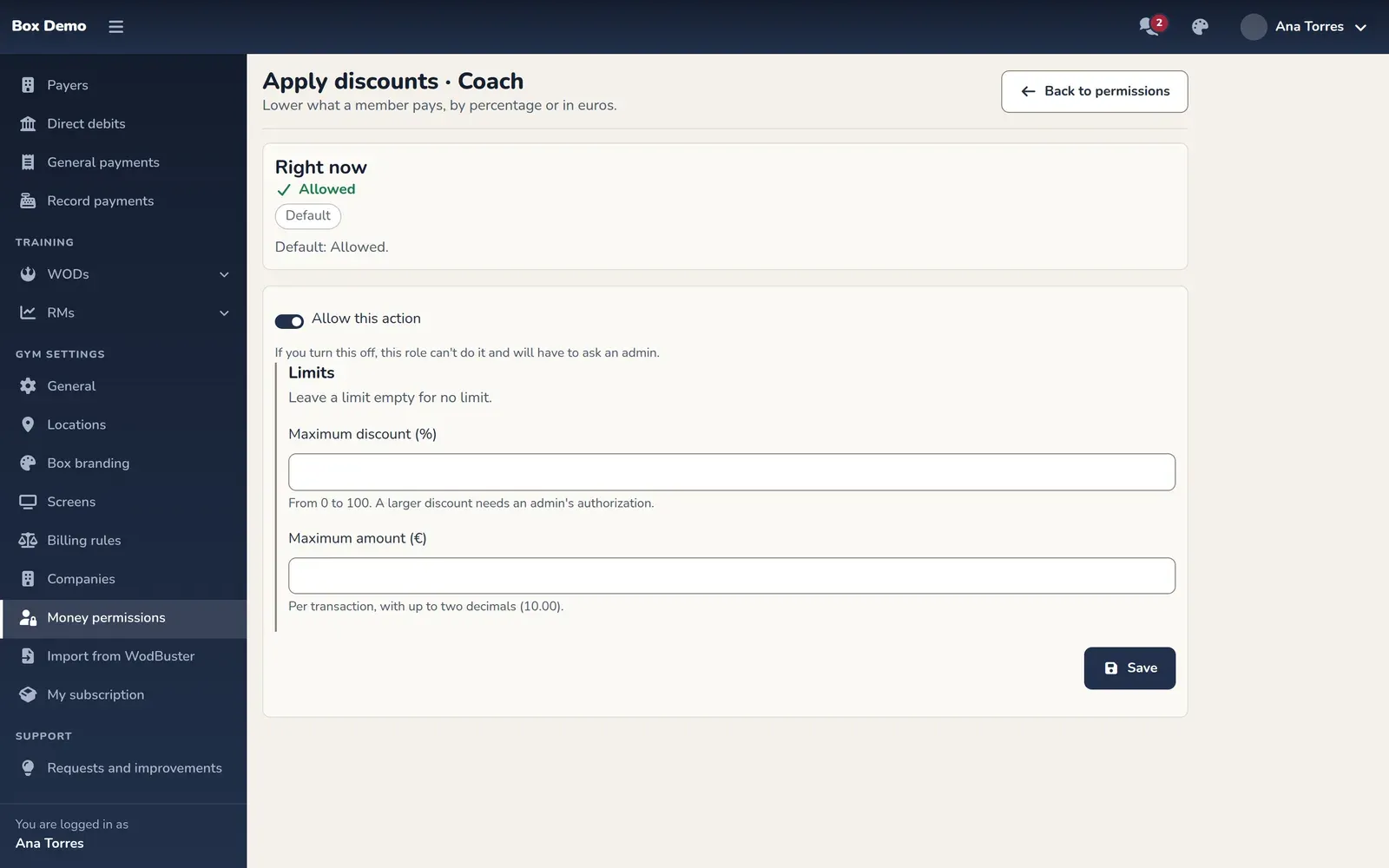
You can only edit roles below yours. You can’t remove administrators’ access to rules and permissions. The coach and manager also can’t change roles or act on another staff member.
If you restrict a coach permission, the manager inherits it as long as they don’t have their own. Buttons for operations that aren’t allowed are hidden. If someone tries to go over a limit, the operation is rejected and not saved.
Ask an admin opens a message to write to the administrators. It doesn’t start an approval: an administrator has to do the operation or change the permission.
Who did each operation
Section titled “Who did each operation”Operations are recorded in the history. In Transactions, in a class pass’s transactions and in a month’s details, you’ll see the name of whoever recorded the operation. Classes given manually also show who gifted them in Workouts. Automatic and migrated transactions don’t show that name.
See also Void, refund and write off and Charge several months.
Common issues
Section titled “Common issues”- I can’t see how to change my own column. You can only edit roles below yours.
- The coach can’t see a button they used to have. Check their role’s permission and its limits.
- The manager lost a permission when the coach’s changed. Give them their own setting if they should keep it.