
QR code gym access in RoninBox
QR code access lets members enter and leave the gym by showing a QR code on their phone to a reader. RoninBox only lets in people whose payments are up to date and, if they don’t have an unlimited plan, who have a class booked for today. This section only exists when your gym has the feature turned on.
Transcript
In the left-hand menu, open QR access. This is where you control check-ins and check-outs at your gym.
Users inside shows who is in the gym right now, with their check-in time, and today’s activity log.
Access history keeps every check-in and check-out, with the length of each visit.
Pick the From and To dates and tap Filter to find the accesses for a period.
Turn on the feature
Section titled “Turn on the feature”A super administrator turns it on or off in Gym settings ▸ Admin options, with the Enable QR gym access checkbox. While it is off, neither the QR access menu nor the member’s access screen appears.
What the member sees
Section titled “What the member sees”Access appears in the bottom bar of their app. When they open it, they see a QR code.
- If they are not inside, it is an entry QR code ("Gym entry").
- If they are already inside, it is an exit QR code ("Gym exit").
- Below it reads "Show this QR code at the turnstile to get in." with a countdown showing "Expires in".
- The code is valid for 3 minutes. When it runs out, the screen reloads and generates a new one.
- Each code can only be used once.
When the reader scans it, the member’s screen responds instantly: "Access granted" with "You've entered the gym successfully." or "You've left the gym successfully.", or "Access denied".
A member who is already inside can’t enter again: they are only offered the exit QR code.
Why access is denied
Section titled “Why access is denied”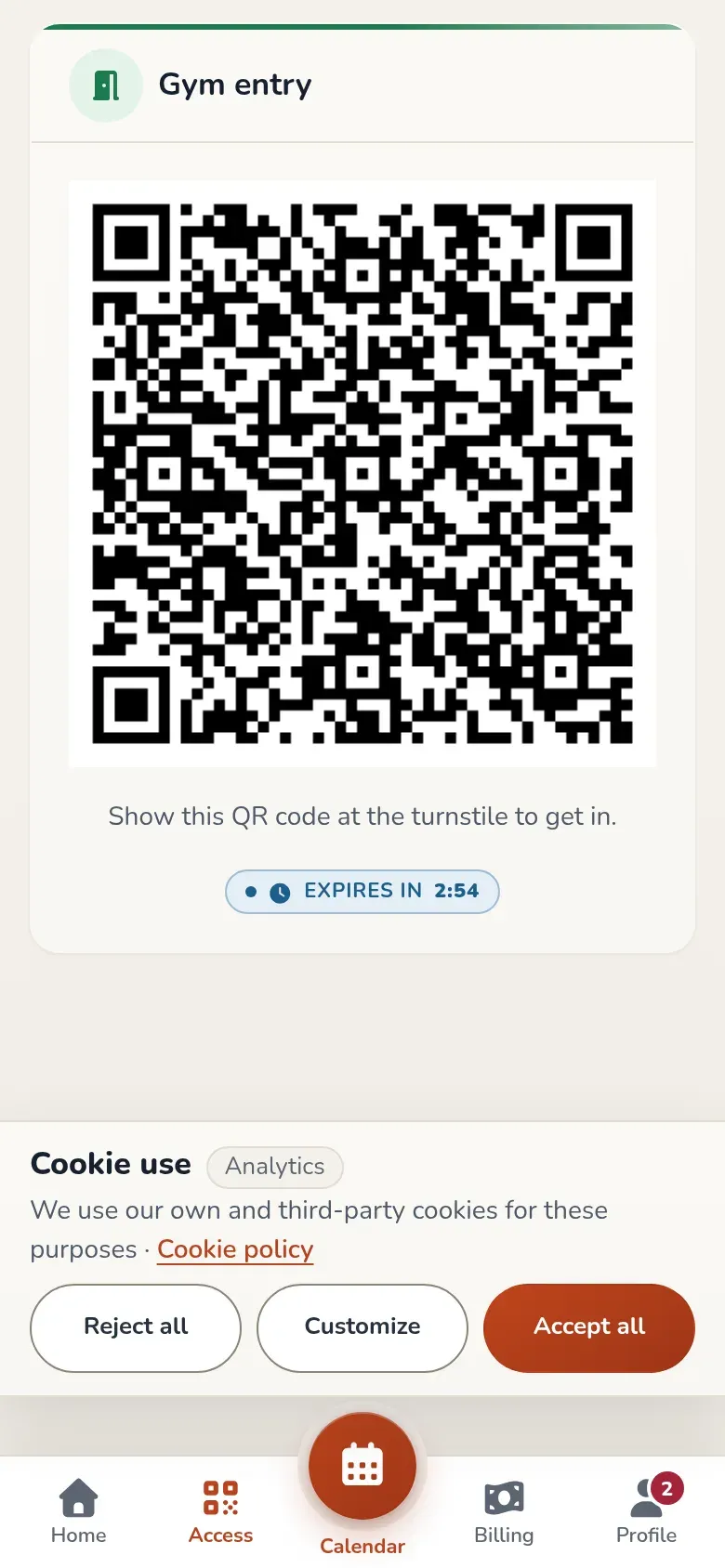
Instead of the QR code, the member sees "Access denied" and one of these reasons, checked in this order:
- "You don't have an active subscription.": they have no plan. See Assign a plan.
- "You have pending payments.": they have unpaid monthly fees. See Member statuses.
- "You don't have an active monthly fee.": the monthly fee for the current period hasn’t been created. See Monthly fees.
- "Your current monthly fee hasn't been paid.": the current monthly fee has unpaid payments.
- "You don't have any classes booked for today.": they haven’t booked any class today that hasn’t ended yet. This isn’t checked with an unlimited plan.
Once the cause is fixed, the member sees their QR code the next time they open Access.
Users inside
Section titled “Users inside”QR access ▸ Users inside shows live who is in the gym: each check-in and check-out appears instantly, without reloading. At the bottom right you see today’s Activity log.
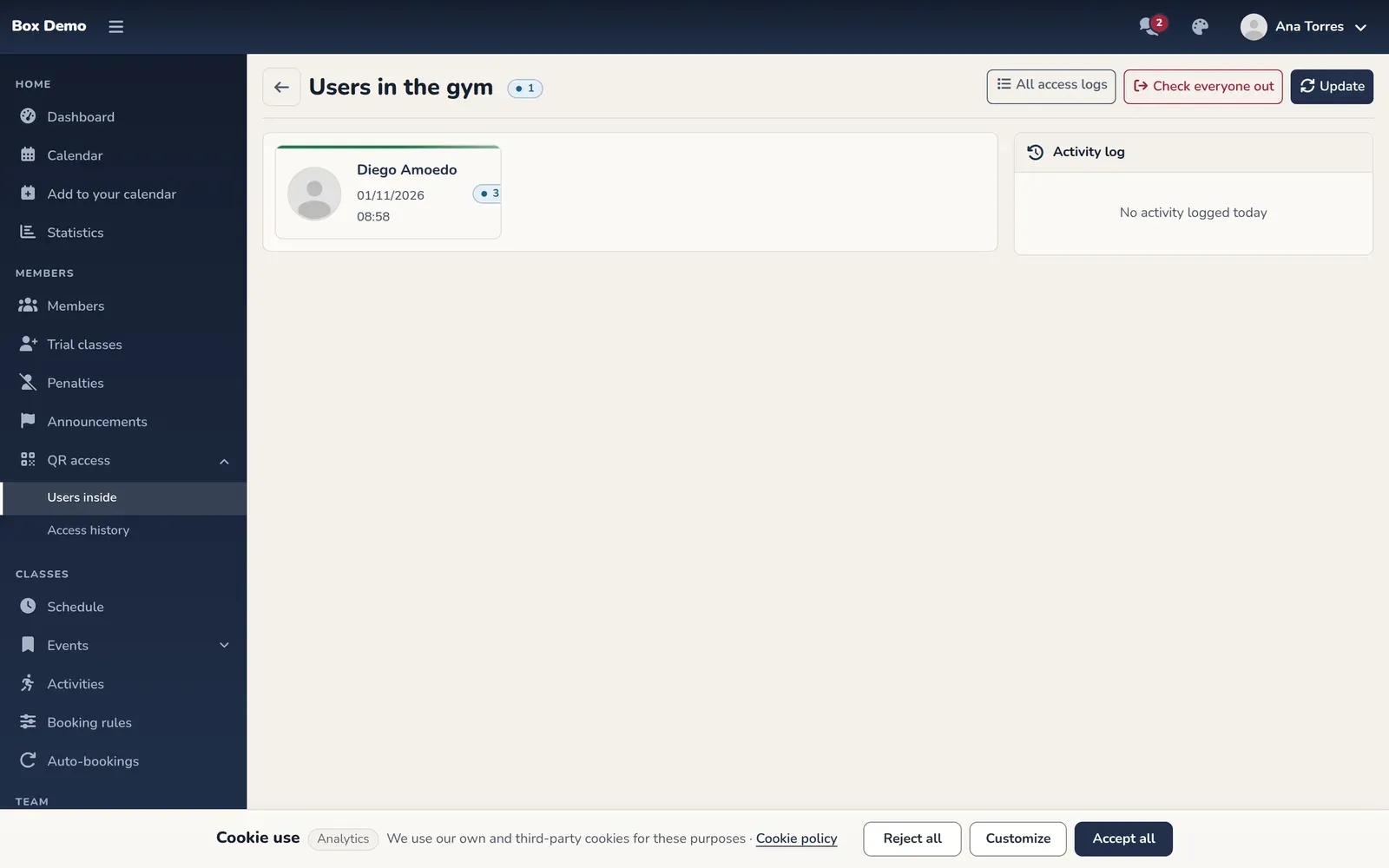
The buttons at the top are:
- All access logs: opens the history.
- Check everyone out: checks out everyone listed as inside. Use it at closing time if someone left without scanning.
- Update: reloads the list.
Access history
Section titled “Access history”QR access ▸ Access history shows one row per visit, with the user, the Entry time, the Exit time and the Duration. You can filter by date (From and To) and search by name. While the person is still inside, "Inside" appears instead of the check-out time.
The browser scanner
Section titled “The browser scanner”QR access ▸ QR scanner turns the camera of your computer or phone into a reader. Only a super administrator can see it. Point the camera at the member’s code ("Point the camera at the user's QR code."). The scanner responds "Access granted" with check-in or check-out, or "Access denied" with the reason. If the browser doesn’t allow camera access, it reads "Couldn't access the camera.".
Common errors
Section titled “Common errors”- The QR access menu doesn’t appear. The feature is turned off in the administrator options, or your user isn’t an administrator.
- The member scans and is told the code was already used. Each QR code works once. Ask them to open Access again to get a new one.
- Someone has been listed as inside since yesterday. They didn’t scan out: use Check everyone out.