
Let coaches edit the schedule
If you want coaches to edit the schedule, turn on Coaches can edit the schedule and classes in your gym settings. From then on, your team can change the regular schedule, each week’s classes, holidays and who coaches each class, without asking you. It’s off by default.
How to turn it on
Section titled “How to turn it on”-
In the side menu, open Gym settings ▸ General.
-
Check Coaches can edit the schedule and classes (marker 2).
-
Tap Save.
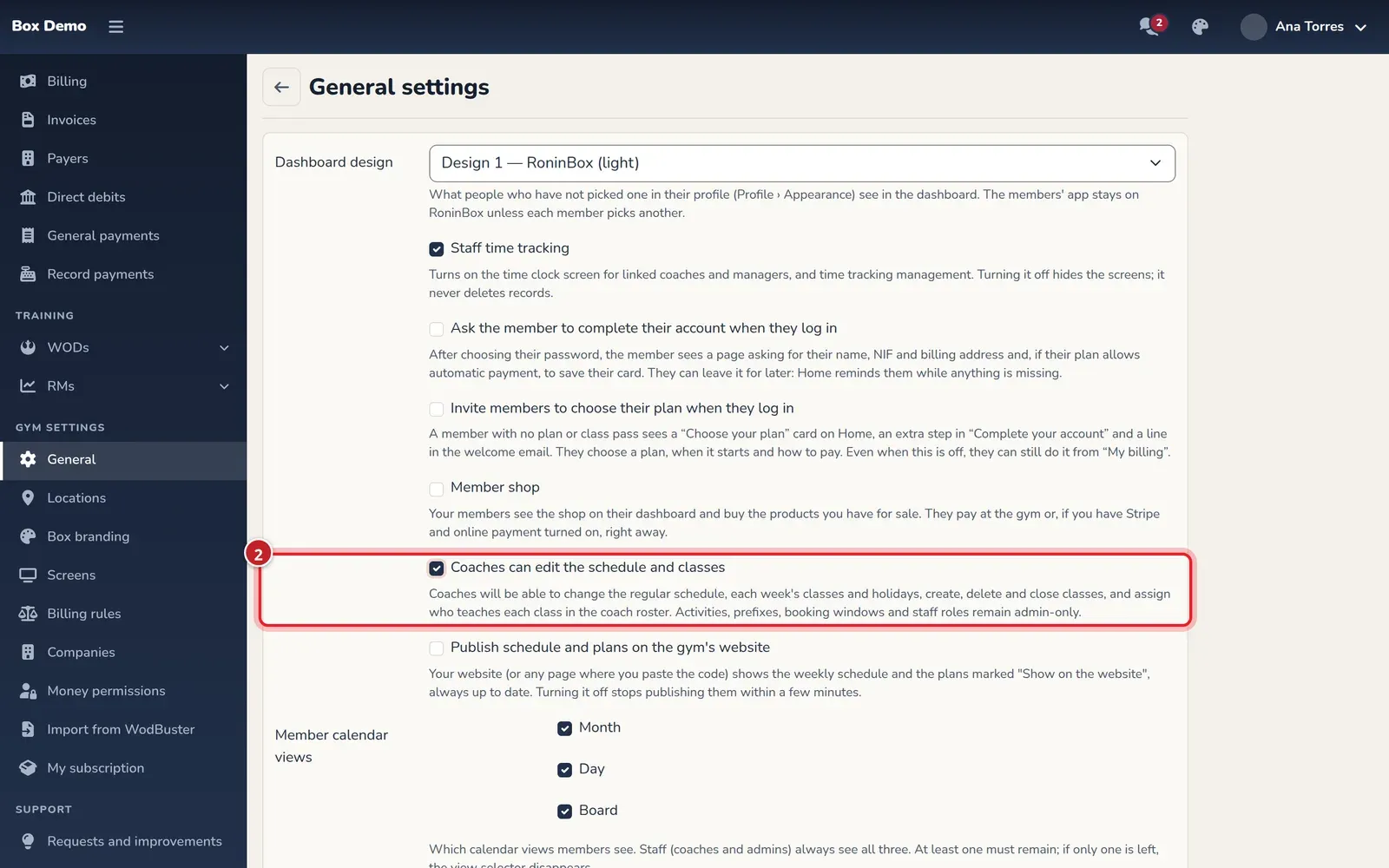
Only the administrator can turn it on or off.
What they can do with the option on
Section titled “What they can do with the option on”It applies to all gym staff: coaches and managers.
- The schedule. Both tabs of Schedule: Edit a week (spots, removing and adding classes for that week only) and Change the regular schedule. Also the Advanced view (table) with the schedule rules (How to set up the class schedule).
- Holidays and days with no classes (Holidays and days with no classes).
- Classes. Create, change and remove classes, and close or reopen them with the lock in their calendar window (How to manage a class).
- The coach roster. Assign who coaches each class, Back to rules, and create, change, activate or delete coach rules (Roster and Coach rules).
What stays admin-only
Section titled “What stays admin-only”- Activities and Prefixes.
- Booking rules: how late members can book and cancel, and what canceling costs. Coaches can see them but not change them.
- The team: adding a coach, switching them to athlete or removing them from the gym, and anyone’s roles (Roles and permissions).
- This option itself and the rest of the gym settings.
Where your coaches find it
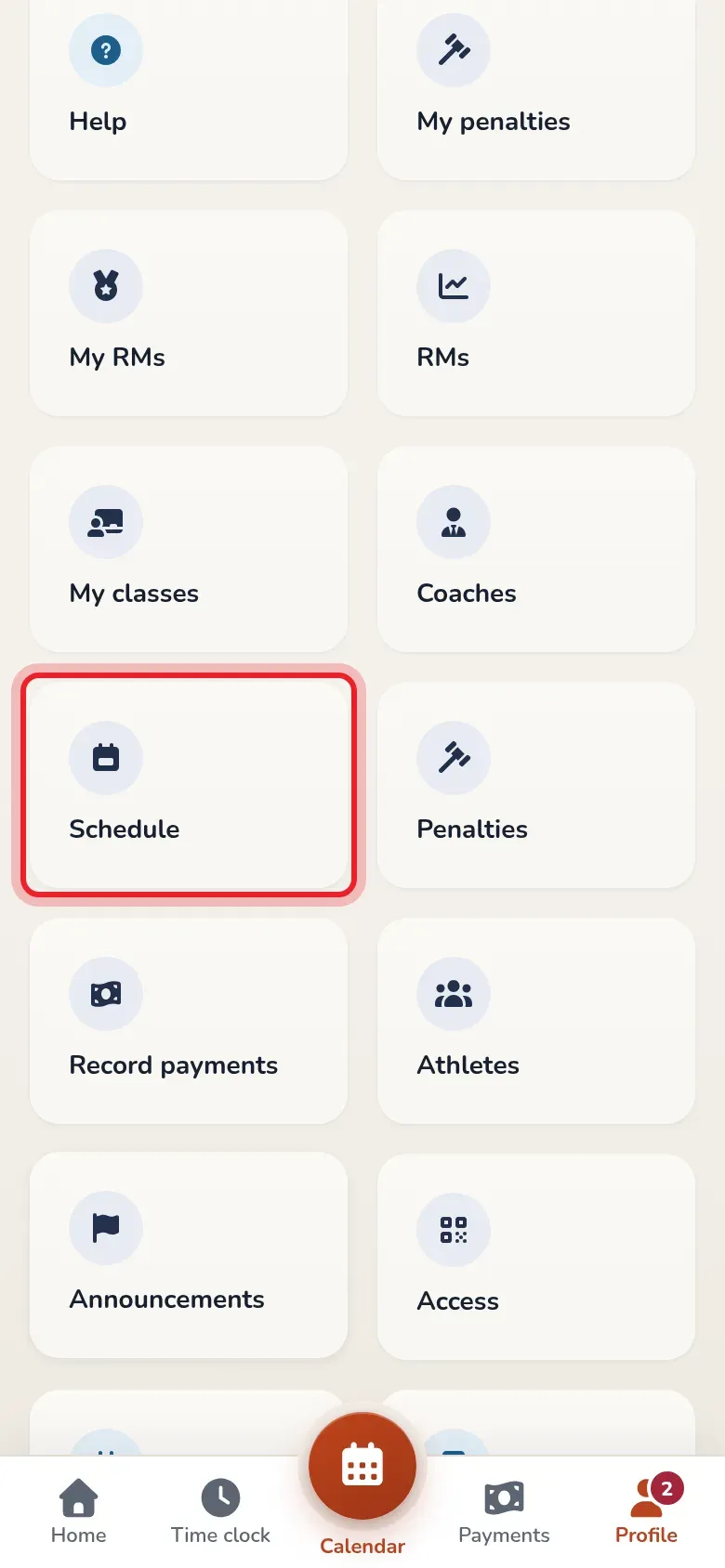
Section titled “Where your coaches find it”- In Profile, the Schedule card opens the schedule on the current week. From there they can go to Recurring schedule.
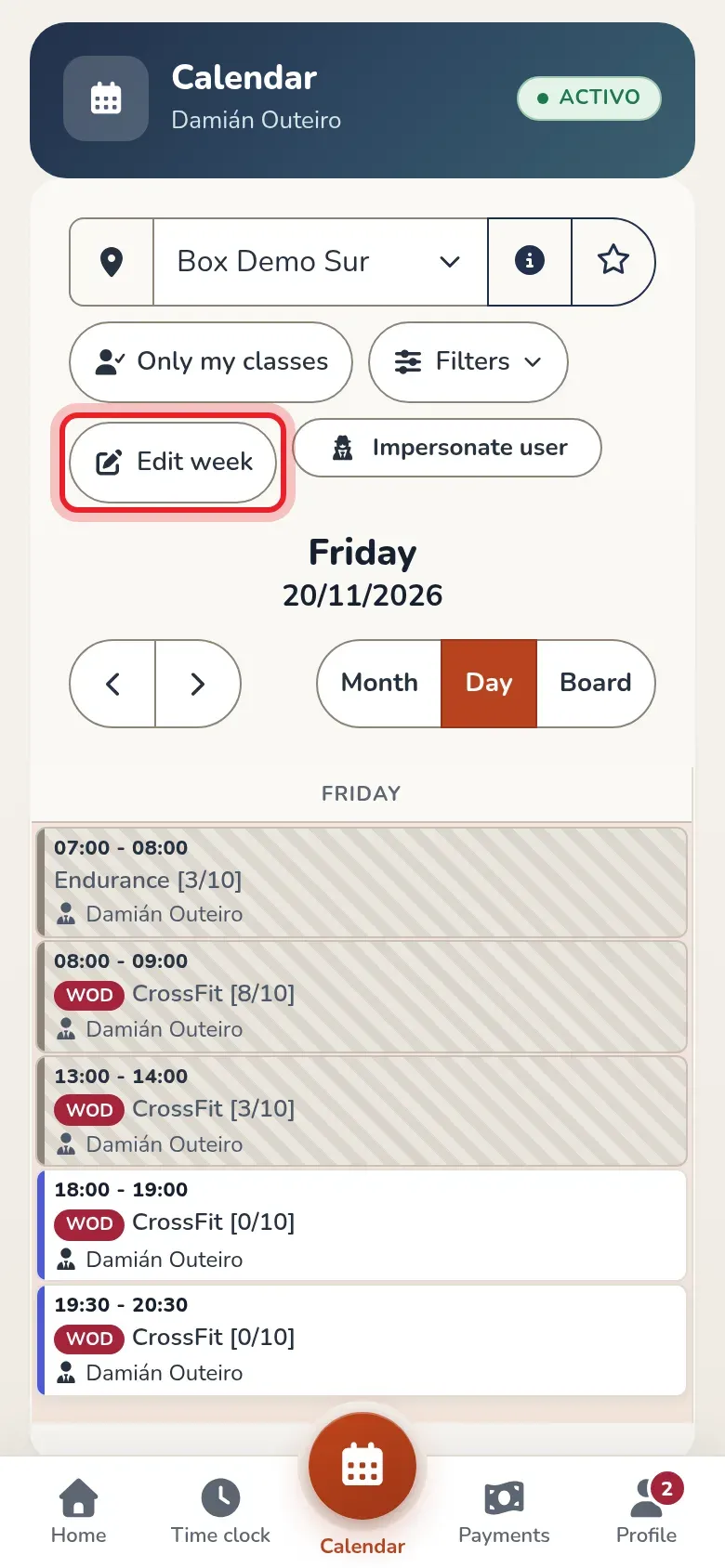
- In the calendar, the Edit week button opens the schedule on the week they’re viewing.
- In Coaches, the Staff schedule tab already lets them mark classes and assign a coach.
- Managers, who use the side menu, also have Classes ▸ Schedule, Event list and Create multi-event.
Recent changes: who changed what
Section titled “Recent changes: who changed what”At the bottom of the Schedule screen, the Recent changes card lists the last ten schedule changes. Each one shows the type of change (for example Spots, Recurring schedule: slot changed, Holiday or Coach assigned), a sentence with the details, who made it and when. It includes changes by both the administrator and the coaches.
Common issues
Section titled “Common issues”- My coach doesn’t see Schedule in their Profile or Edit week in the calendar. Check that the option is checked and saved. If it is, have them reload the app.
- A coach can’t create a new activity. That’s expected: activities are admin-only. Create it yourself in Activities and then they can use it in the schedule.
- I want only one of my coaches to edit the schedule. The option applies to all staff at once.