
How to create a plan in RoninBox
To create a plan in RoninBox, all you need is a name, the activities it covers and the number of classes. A plan has no price: it’s the template for what the member can do. The price is set later, in the pricing plan that groups the plans.
Transcript
In the menu, under Plans and shop, open Plans. Here you’ll find your gym’s plans, sorted by type.
Tap Create Monthly Plan to get started.
Enter a name your members will understand, for example, three classes per week.
Check the activities the plan covers. You can choose several.
Choose whether classes are counted per week or per month, and enter how many.
Finally, tap Save. The plan is now ready to use in a pricing plan.
Plan types
Section titled “Plan types”In Plans you’ll see three tabs, one per type:
- Monthly plan: a fixed number of classes per week or per month. For example, 3 classes per week.
- Unlimited plan: the member can book with no class limit in the activities it covers.
- Class passes: a number of individual classes with an expiration, from one week to “forever.”
How to create a monthly plan
Section titled “How to create a monthly plan”-
Open Plans and shop and go to Plans.
-
With the Monthly plan tab open (marker 1), tap Create monthly plan (marker 2).
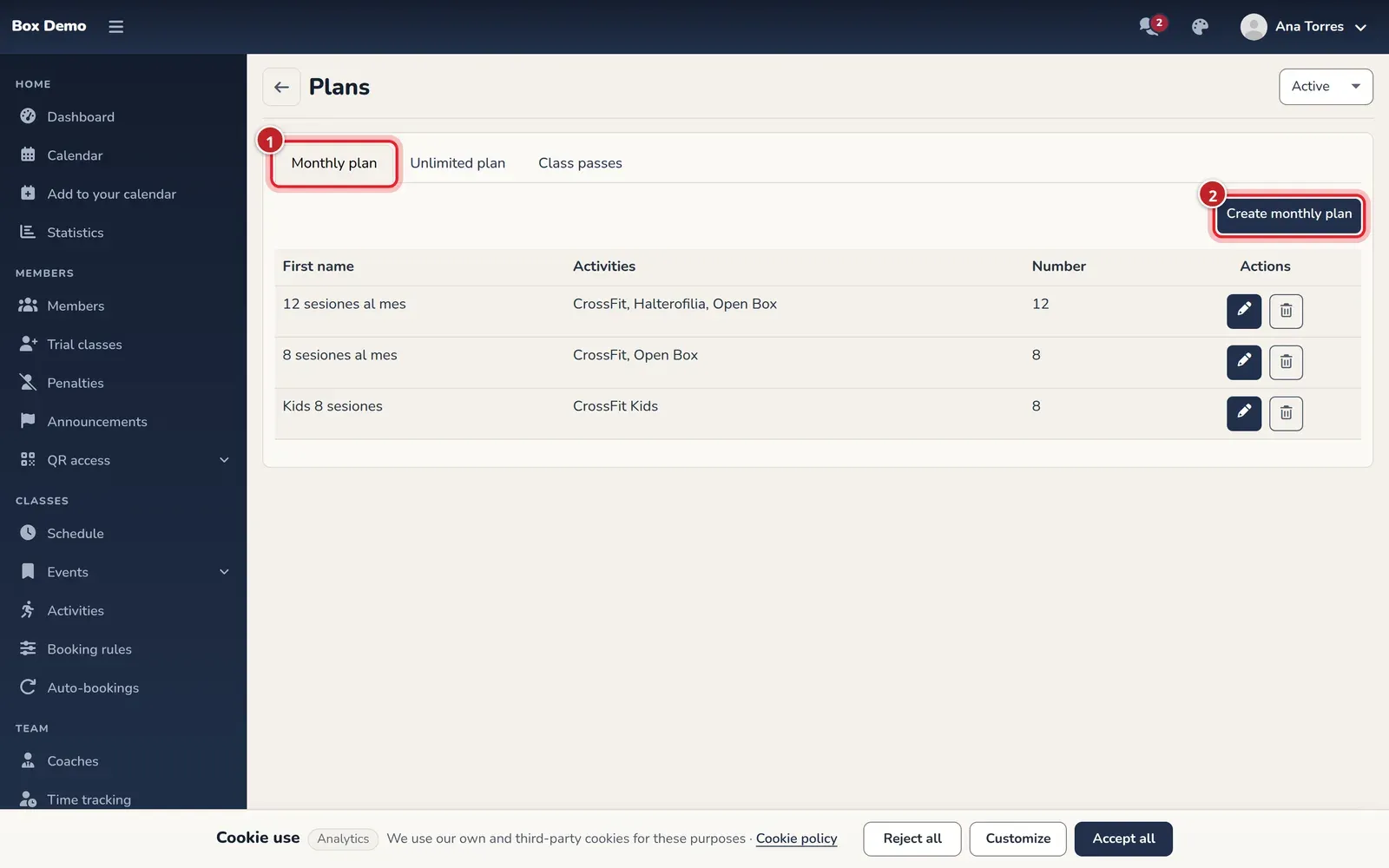
The plan list. Each tab is a plan type. -
Enter the plan name (marker 1). Choose one the member will understand, for example “3 classes per week.”
-
Check the activities it covers (marker 2). You can check several.
-
Choose whether classes are counted per Week or per Month (marker 3).
-
Enter the Number of classes (marker 4).
-
Tap Save (marker 5).
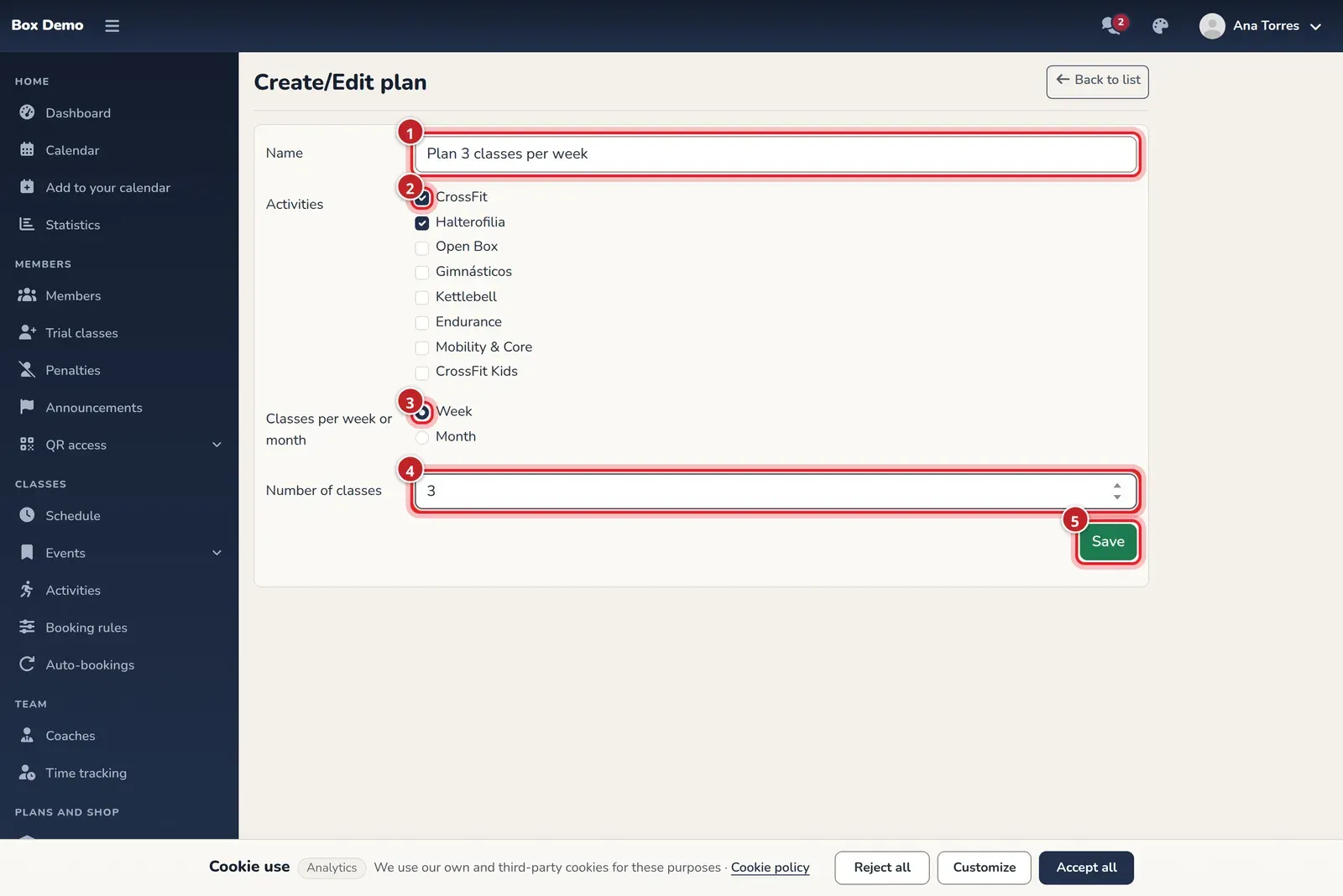
The completed form. The numbers match the steps.
How to create an unlimited plan or a class pass
Section titled “How to create an unlimited plan or a class pass”An unlimited plan is created the same way, but without the week, month or number of classes steps: just the name and activities. For a class pass, open the Class passes tab and enter how many classes it includes and how long it lasts.
Edit or delete a plan
Section titled “Edit or delete a plan”In the list, each plan has a pencil icon to edit it and a trash can to delete it.
Common mistakes
Section titled “Common mistakes”- I’m looking for the price and it’s not there. That’s expected: the price doesn’t go in the plan but in the pricing plan.
- An activity is missing from the form. Create it first in Classes ▸ Activities.