
How to create packs in RoninBox
To create packs in RoninBox, you first need extensions in the catalog and, if you want, class pass plans. A pack bundles both so you can add them to a member’s monthly fee in one go, instead of one by one.
Only the administrator sees this menu. Packs don’t have their own price: it comes from the extensions they contain (see extensions).
What goes into a pack
Section titled “What goes into a pack”- A Name.
- The Pack extensions: chosen from the ones in the catalog.
- The Class passes: chosen from the class pass plans you already have (see create a plan).
How to create a pack
Section titled “How to create a pack”-
Open Packs and offers and go to Packs.
-
Click Create pack (marker 1).
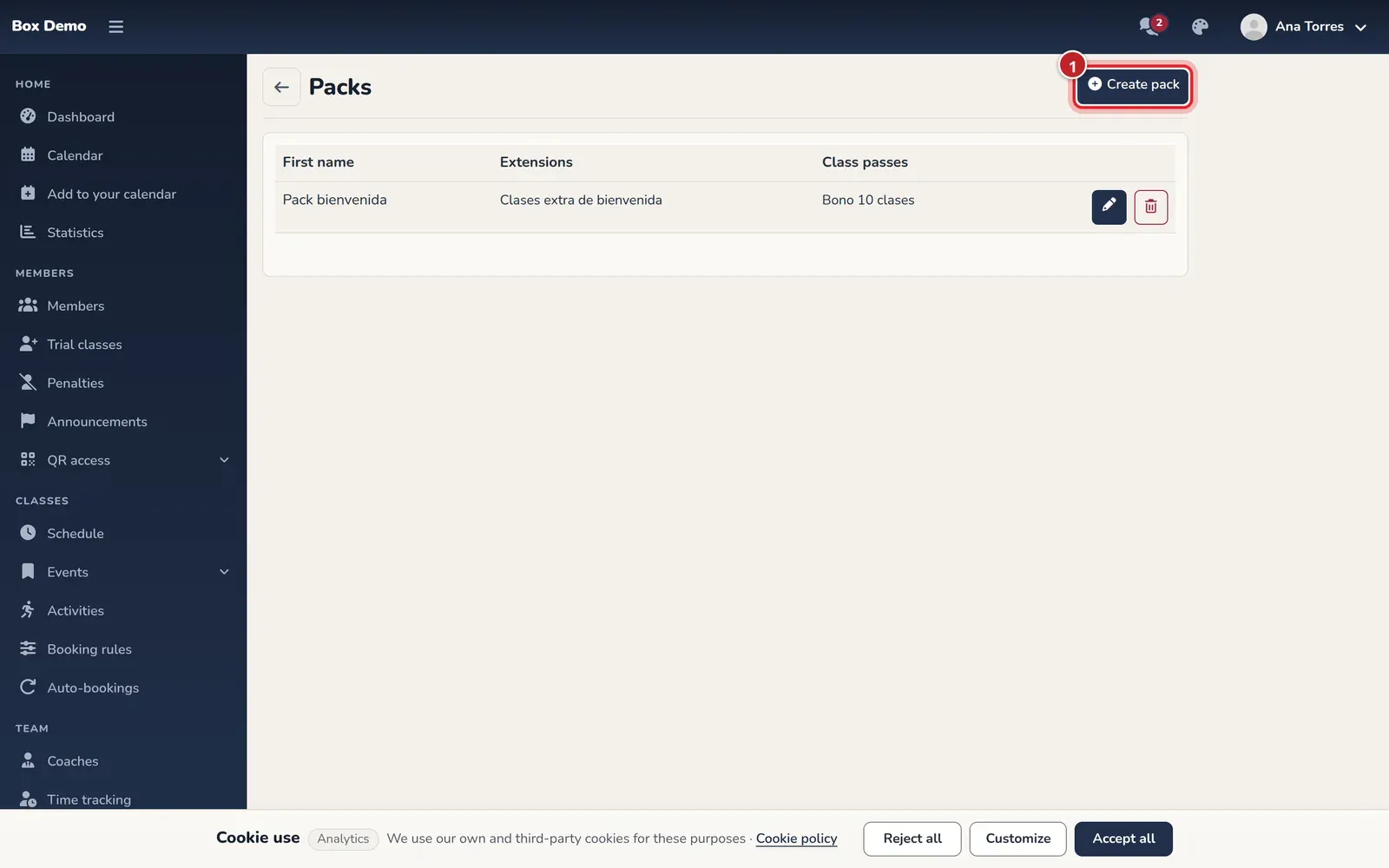
The pack list (empty here). Each pack will show its extensions and class passes. -
Enter the Name, check the extensions and class passes it includes and click Save.
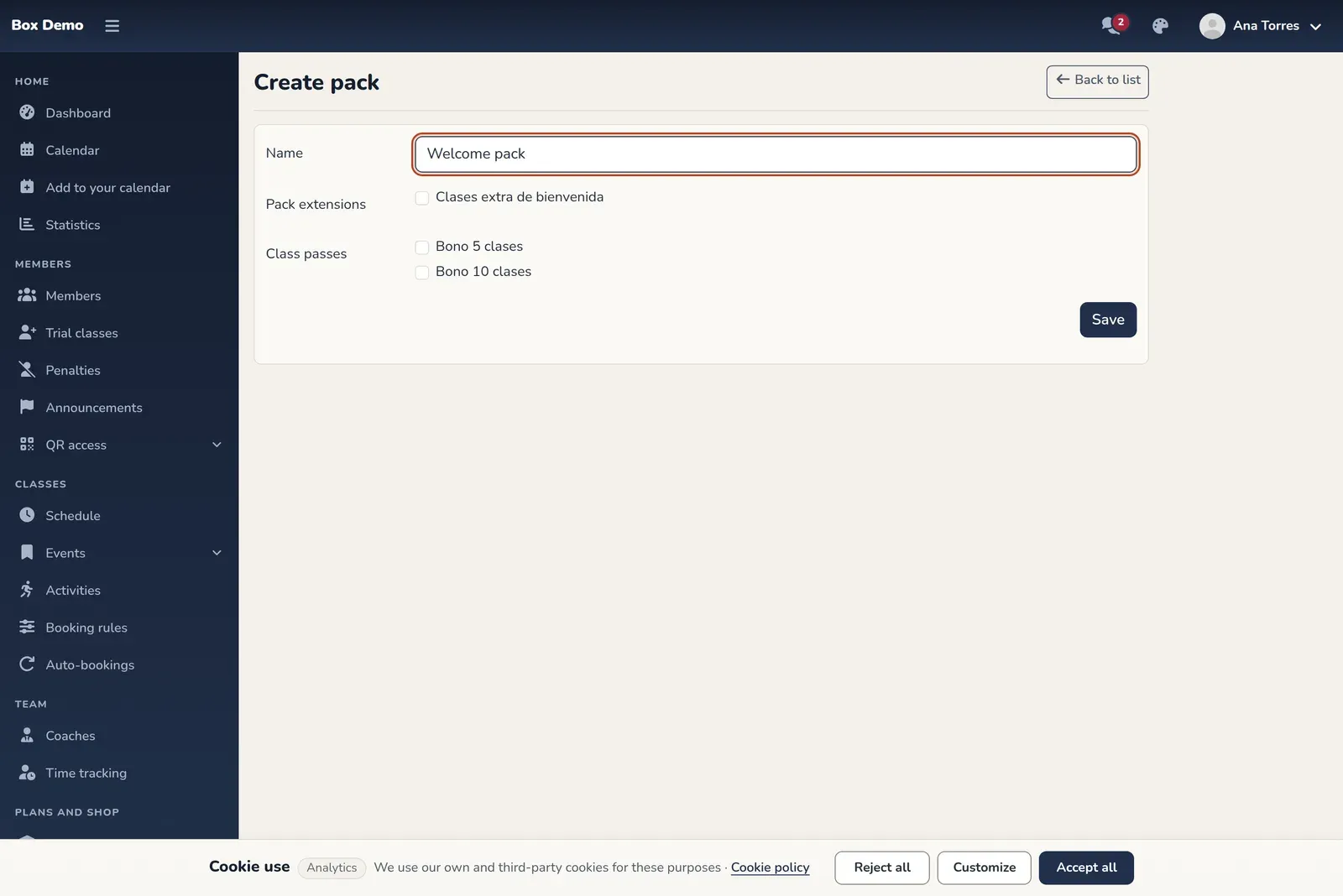
The pack form.
In the list, the pencil edits the pack and the trash can deletes it after asking you to confirm.
How to add a pack to a member
Section titled “How to add a pack to a member”-
Open the member’s profile and go to the Extensions tab. See member profile.
-
Click Add pack.
-
Check the Packs and choose the Monthly fee they go to.
-
Click Save.
What happens when you save:
- Each extension in the pack is copied to that monthly fee with its description, number of classes, activity and price, and the available classes are created.
- The pack’s class passes are added to the member.
Since they’re copies, changing or deleting the pack later doesn’t change what was already added to members.
Common mistakes
Section titled “Common mistakes”- The pack’s extension list is empty. Create the catalog extensions first.
- I want to charge a price for the pack. Set it on the extensions: the pack doesn’t have its own price.